SUMMARY
History will remember 2020 as the year music educators reinvented how to teach general music to young students. How can we provide opportunities for students to sing when restrictions prevent us from singing together?
by Amy Burns




History will remember 2020 as the year music educators reinvented how to teach general music to young students. How can we provide opportunities for students to sing when restrictions prevent us from singing together?
by Amy Burns
Music Class without Singing – How does that work?
History will remember 2020 as the year music educators reinvented how to teach general music to young students.
We are teaching remotely or in hybrid to face-to-face (f2f) with restrictions. Most music educators have had to adapt to a unique teaching scenario and be prepared at a moment’s notice to switch into a different teaching model. Technology, once a passive tool an elementary music teacher used intermittently, has become one of our primary teaching vehicles.
One of the biggest challenges in general music is that we can no longer sing in the classroom. Some teachers in warmer climates can sing outside using social distancing precautions. However, many do not have that option. How can we provide opportunities for students to sing when restrictions prevent us from singing together?
Where do we go?
Resources like YouTube can help us find videos to model good singing both online or in-person. If YouTube is not allowed at your school, there are alternatives. Here are a few I recommend:
Viewpure removes all distracting comments and side-bar related videos from YouTube links.
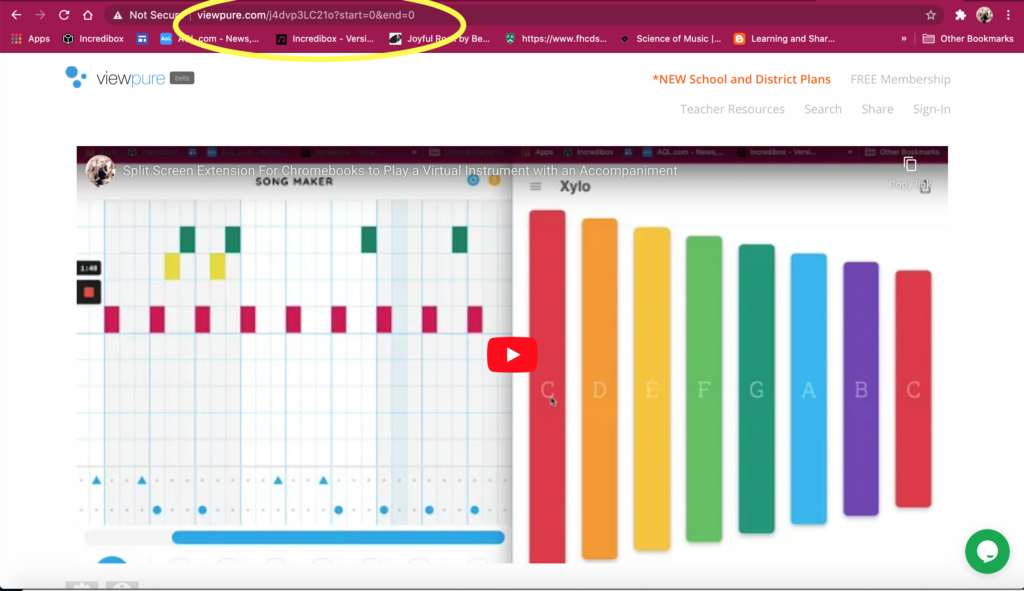
To use Viewpure:
Google Slides can also “purify” your YouTube links.
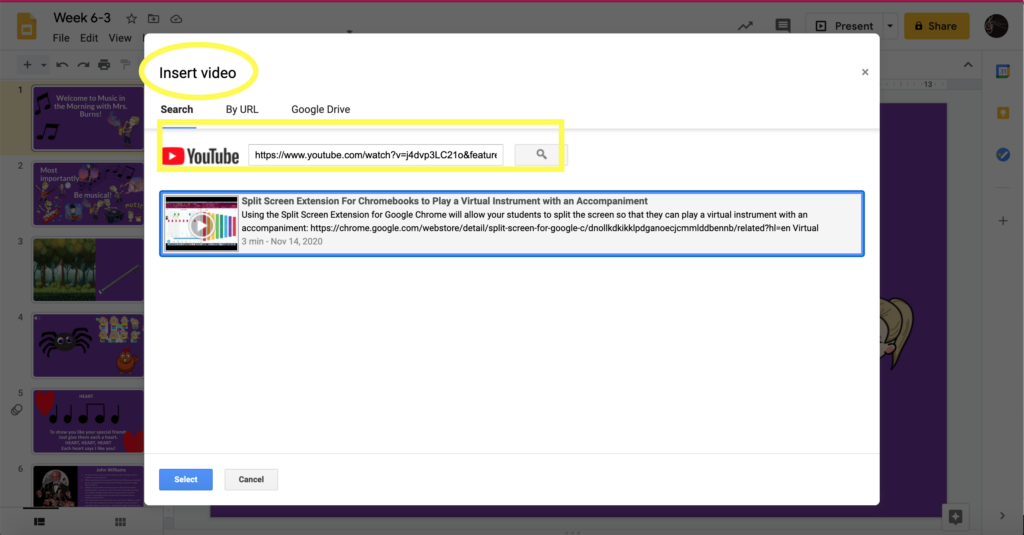
To use Google Slides:
Ripping videos can become problematic when there are copyright issues. If you decide to go this route, I will encourage you to use screen recording and cite the video’s source. Here are a few screen recordings tools I have used:
Each of these resources has free educational versions. They can record videos for a time of 5 to 45 minutes, depending on the platform.
Recording yourself can be done in numerous ways. If you are teaching and f2f and allowed to sing, you are probably restricted in how long you and your students can sing together. Creating a video lets the students hear you, even when you cannot sing live.
Mobile Devices
One of the most intuitive ways to create a video of yourself singing a song is to record yourself with your mobile device. You can then play it during class. Additionally, you can add your video to Google Slides.
Screen Recording
Using the apps listed above, you can screen record yourself performing a song. The benefit of using screen recording is that you can project song lyrics at the same time you appear on the screen.
Apps like Screencastify will automatically save to your Google Drive. Also, some of the apps will give you a link and allow you to download the video. Others will provide you with the option of creating an embed code to place it on a website.
Zoom
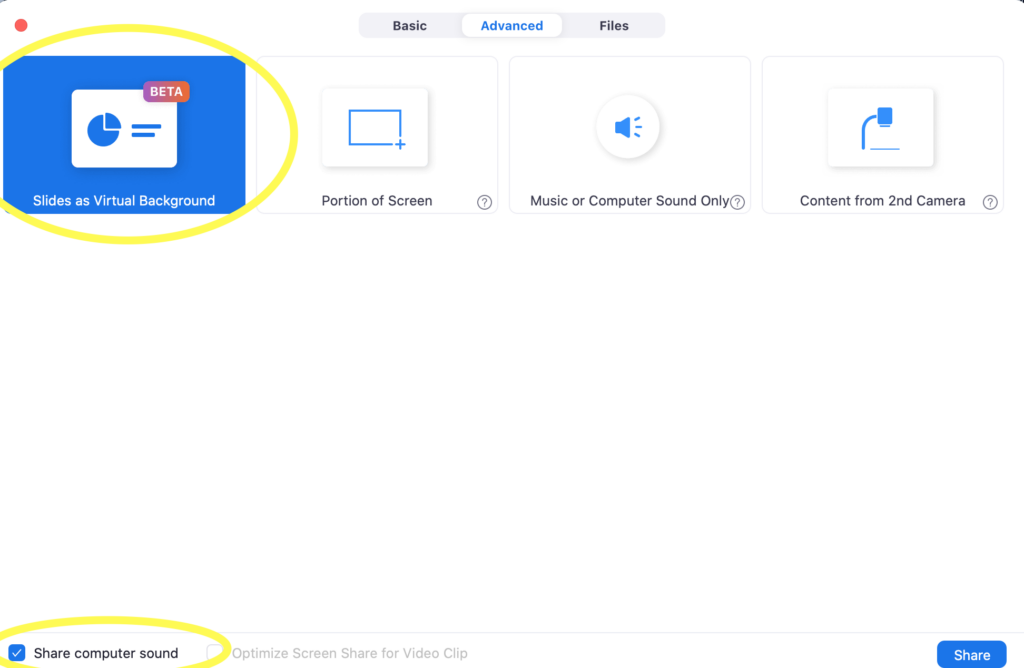
Using Zoom as a screen recording tool has some superior benefits. By accessing the free educators’ version, you currently have unlimited screen recording time. Also, on most devices, you can record yourself with your slides as a background by launching:
This method allows you to upload a PowerPoint that might contain lyrics, pictures, etc., letting you record yourself on-screen singing with additional material you want students to view. When finished, Zoom will save the recording to your hard drive or cloud—allowing you to present during class or share the recording to an online platform.
Although none of these methods will replace singing in person, technology has made singing with students possible. I would encourage everyone to think outside the box and give one of these ideas a try.
Part 1: Establishing Routine
Part 2: Singing Pandemic Style
Part 3: Deciphering Online Learning Platforms
Part 4: Motivating Student Musicians Online

Contributor
Amy M Burns has taught elementary general music for over 20 years at Far Hills Country Day School, a preschool through grade eight school in NJ. Amy earned her Bachelor’s of Music Education and Performance from Ithaca College and her Master’s of Science…
Discover more from Amy Facebook
 Twitter
 Pinterest
 LinkedIn
 Email
Email Print
Print