SUMMARY
There’s a new online composition tool in town. Chrome Music Lab! To spice up online learning for my students, I have introduced Song Maker as a music composition tool.
by Kate Hagen





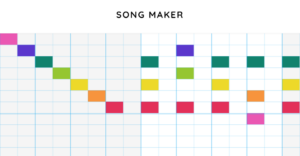
There’s a new online composition tool in town. Chrome Music Lab! To spice up online learning for my students, I have introduced Song Maker as a music composition tool.
by Kate Hagen
There’s a new online composition tool in town. Chrome Music Lab!
To spice up online learning for my students, I have introduced Song Maker as a music composition tool. At first glance, Song Maker appears to be relatively rudimentary and fun, not a super useful teaching tool in the general music classroom. Wrong!
Although not as robust as other apps like GarageBand or Audacity, Song Maker’s beauty lies in its simplicity and accessibility. Song Maker is an online application created by Google as part of its Chrome Music Lab Experiment in 2018. You can watch this video, which gives an overview of the experiments currently available:
Notice that there is no need for students to create accounts, yet they can still save and share their compositions! The video neglected to impart that software such as this opens a whole new avenue of educational applications to the savvy general music teacher.
In order to assist you in your creative journey, I have provided a cheat sheet of of the functions and capabilities found within in Song Maker. At my school, students in fifth and sixth grade will be exploring musical modes while we bounce back and forth between Hybrid and Online Learning. For more information on this specific project, check out the Lesson Sketch, I wrote to accompany this article.
Here is the cheat sheet I developed to help you:

1 – Play – Play your composition
2 – Melody Instrument Choices – Change the sound of your melodic composition
3 – Rhythmic Accompaniment Instrument Choices – Add up to two accompanying percussion lines. Each instrument choice has a low and high pitch.
4 – Tempo – Set the range from 40 – 240 beats
5 – Mic – Sing notes into Song Maker using your computer’s microphone
6 – Settings – Modify several more elements in your composition. See detailed menu below
7 – Undo – Works like a delete button.
8 – Save – Four options to save your composition.
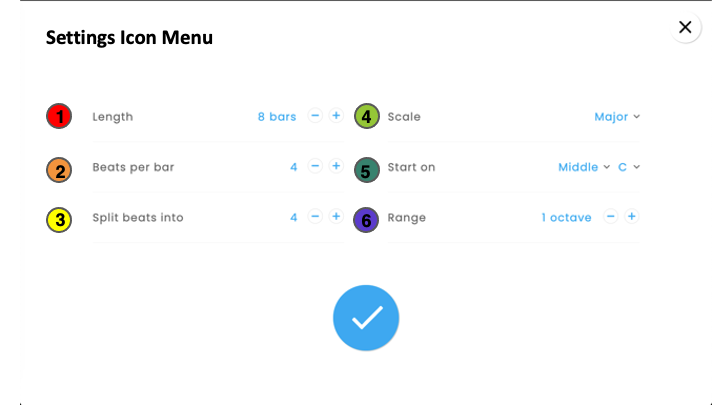
1- Length (Number of Measures) Create a piece that is as short as two measures or as long as 16 measures.
2- Beats Per Bar (Time Signature) Create a piece that has as few as two beats per measure or as many as seven beats per measure
3 – Split Beats Into (Sub-division of each beat)
4 – Scale
5 – Key (sets the pitch range & the first pitch)
6 – Range – set the number of pitches
As you can see, the possibilities for student composition are endless with Song Maker. Students can work alone or in small groups. The web-based software allows students to work in both online and in-person settings. Finally, sharing their compositions is incredibly easy – which I love as a teacher.
For additional ideas on utilizing other experiments in the Chrome music lab, check out this article by Midnight Music.

Contributor
Kate Hagen currently teaches in the Iowa City Community School District. She has 20 years of experience working with K-6 students in public schools. Kate has a license in Music Therapy from the University of Iowa, and a Masters of Music Education from University of…
Discover more from Kate Facebook
 Twitter
 Pinterest
 LinkedIn
 Email
Email Print
Print